
Installing the Jenny AI App in ServiceTitan
In this article
In this article group
UpSmith reads and writes to your ServiceTitan through an app called Jenny AI. Until someone installs it, your UpSmith account exists but nothing is connected.
It's a five-minute job and you only do it once, but there are three settings in the middle that are easy to get wrong and that quietly limit what your agents can do.
Who has to do this
Someone at your company, signed in to your own ServiceTitan. UpSmith can't install it for you — ServiceTitan only lets a person inside your tenant grant access to their own data.
Two things that trip people up:
It has to be your ServiceTitan, not your parent company's. If you're part of a group or a franchise, the install has to happen in the tenant whose jobs you want UpSmith working — not in the parent brand's ServiceTitan.
You need permission to see API Application Access. It's a security-gated page in ServiceTitan settings. If you can't find it, you don't have the right role and you'll need someone who does — usually whoever administers your ServiceTitan.
Adding people to UpSmith is a separate job and isn't a prerequisite — the app install and your UpSmith user list don't depend on each other. See Who Can See What — Roles and Permissions.
First-time install
Start in UpSmith. Sign in and you'll land on Last Step! Install Jenny AI! Click Install UpSmith's Jenny AI App. ServiceTitan opens in a new tab — if nothing happens, your browser blocked the popup.
Open ServiceTitan settings. Click the gear icon in the top-right of the ServiceTitan nav bar. It sits between the ? help icon and your account avatar.
Go to Integrations. In the settings sidebar, click Integrations. It expands rather than opening a page — that's expected. Don't confuse it with TitanExchange, which is the app marketplace.
Click API Application Access. It's the first item under Integrations. You'll land on Manage API Application Access. Quicker route: type api into the search box at the top of the settings sidebar and it comes straight up.
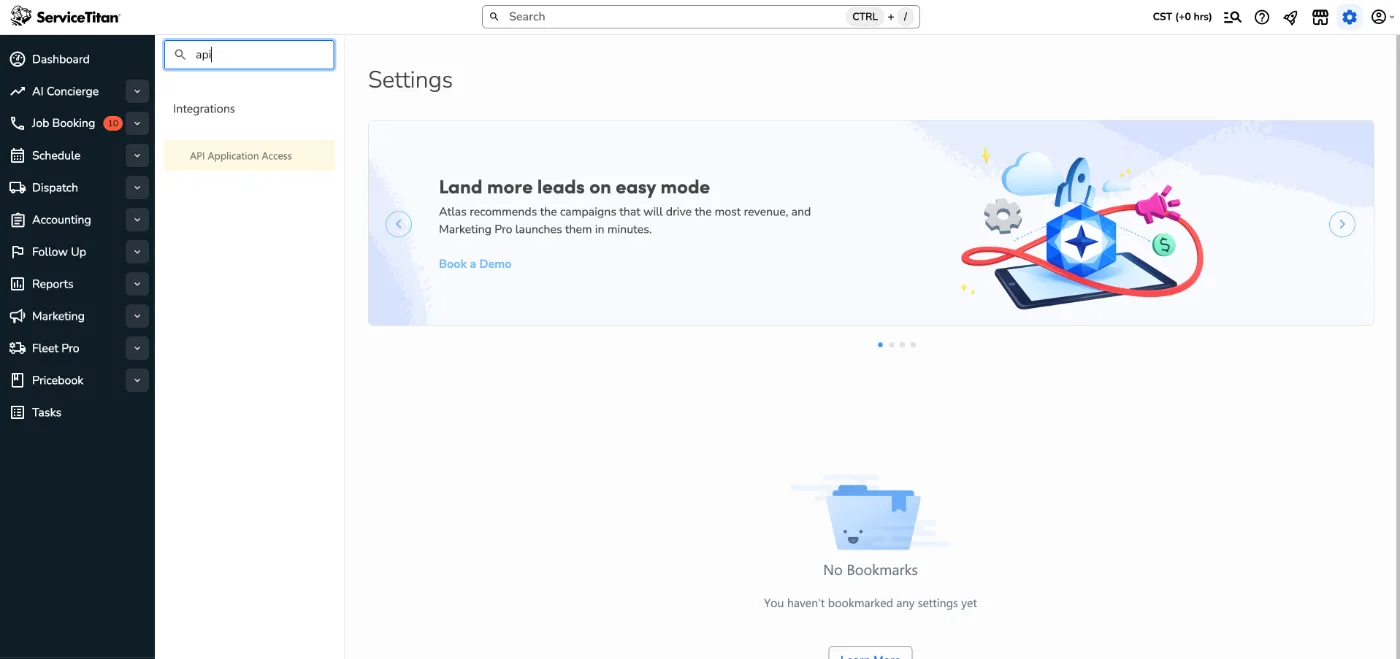
Typing "api" into the settings search box is the fastest way to get here.
Click Connect New App. It's the blue button at the top right of the list. If you already see Jenny AI in the list with an Update to New Version button, stop — you're not doing a first-time install. Skip to the next section.
Select Jenny AI, then click Connect. The popup shows 1 APP AVAILABLE with a Jenny AI card. You have to click the card first — Connect stays greyed out until you do, and the card gives very little feedback when it's selected. This is where most people get stuck.
Scroll to the bottom of the popup. You'll see "Jenny AI wants to access your ServiceTitan Account" followed by a long list of Read and Write permissions. It's a lot — that's normal, and it's what lets your agents book jobs, confirm appointments, and read your pricebook. Scroll inside the popup, not the page behind it. Allow Access is already visible, but don't click it yet.
The three restriction settings
Below the permission list are three dropdowns. These are the part people get wrong, and getting them wrong doesn't throw an error — it just quietly limits your agents. Set them to exactly this:
Restriction by "booking_provider" for Bookings → No restriction. You will see an option called Jenny AI in this list. Do not pick it. It looks like the obvious answer because the app is Jenny AI, but choosing it limits which bookings UpSmith can see and write.
Restriction by "gps_provider" for GPS Pings → Native. This one is the exception. Most tenants have Native as the only option and there's no No restriction choice here — pick Native.
Restriction by "report_category" for Reports within the category → No restriction. This field often arrives pre-filled with Marketing, so you have to actively change it. Its option list opens upwards and covers the text above, which makes it look like it belongs to something else. No restriction is at the bottom of the list.
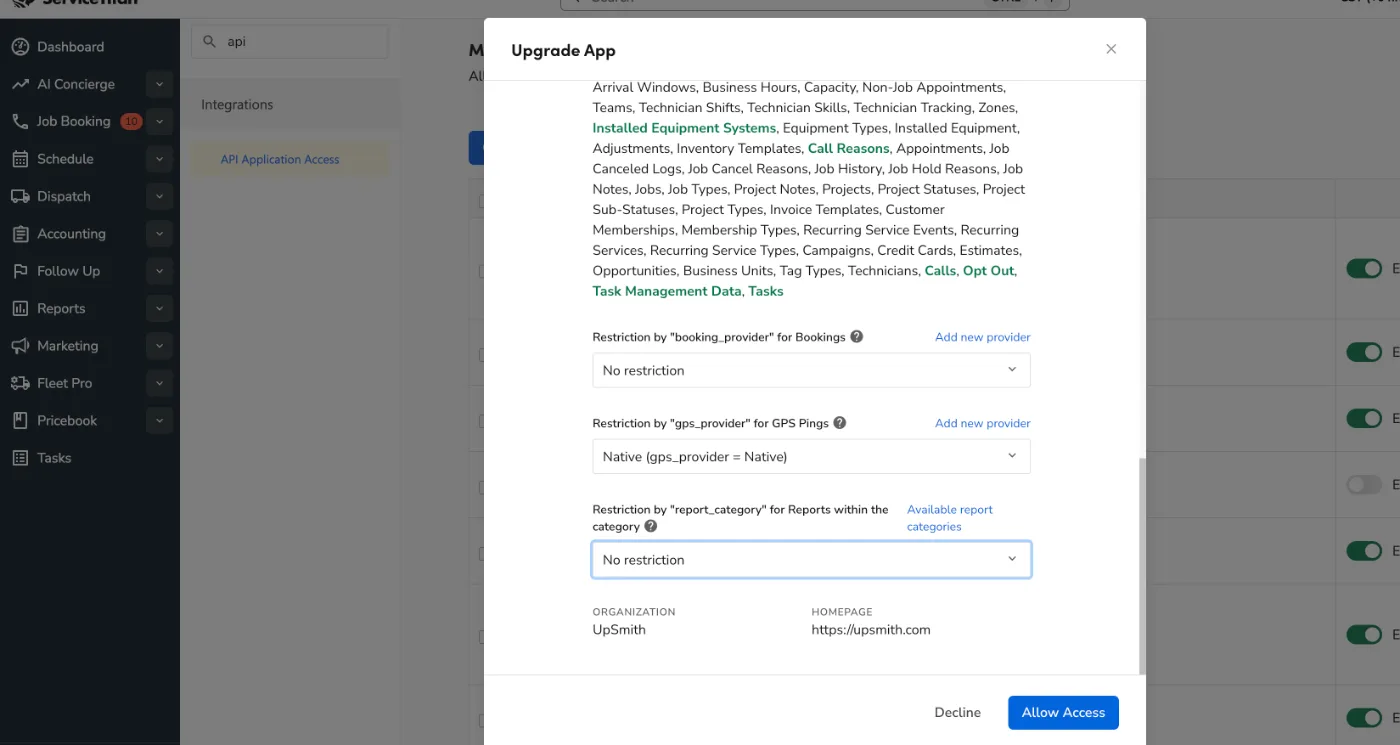
All three dropdowns set correctly. This one was taken during an update, so the header reads Upgrade App — on a first-time install the popup is identical apart from the title.
Click Allow Access. Check all three dropdowns first — nothing validates them for you. Decline sits right next to Allow Access, so look before you click.
Accept the Terms and Conditions. The popup doesn't close when you click Allow Access — it turns into a Terms and Conditions screen. Click Accept at the bottom right. This is the step people miss. Closing the popup here, or clicking Decline next to it, leaves you with nothing granted even though you approved the permissions a moment earlier.
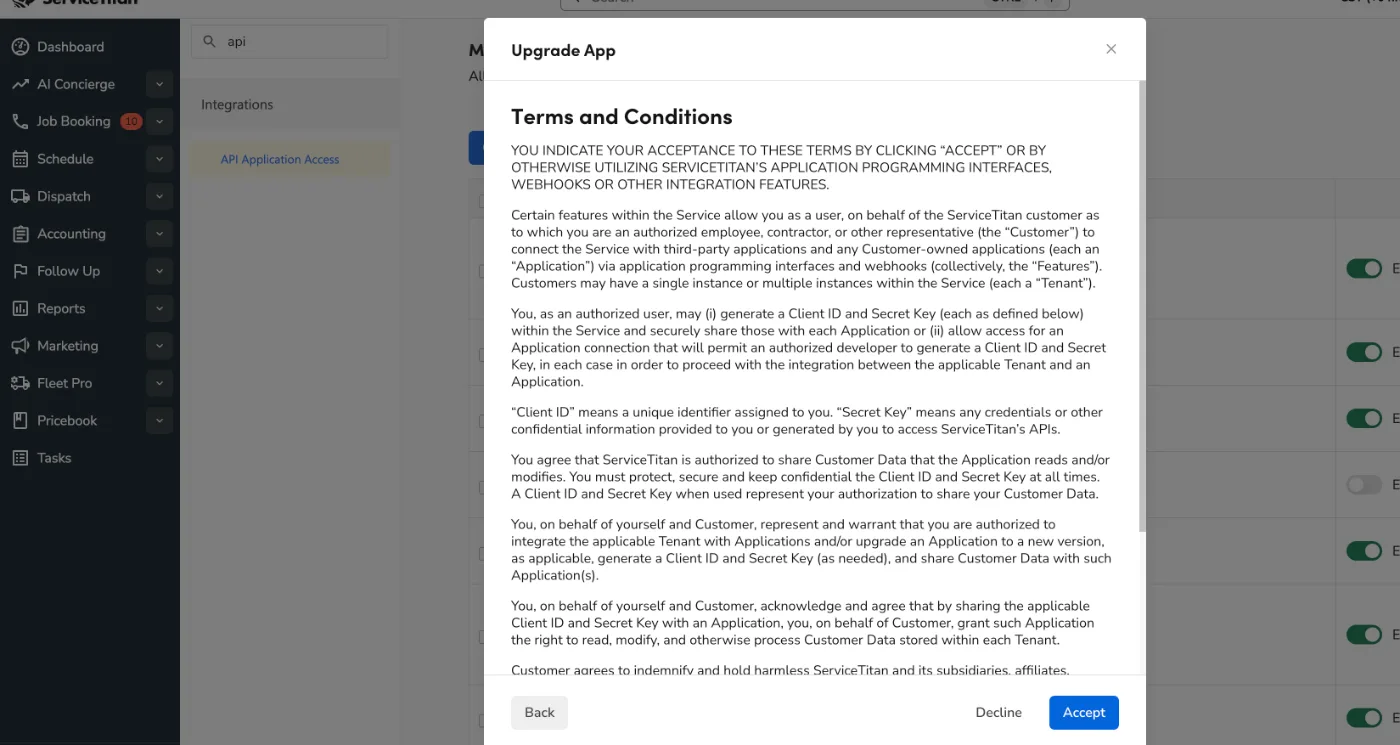
The Terms and Conditions screen. Nothing is granted until you click Accept.
Go back to UpSmith and click I've installed the app — check now. If it says you're still not connected, wait a couple of minutes and click it again — ServiceTitan takes up to five minutes to make the new access live. That first failure usually isn't a real failure.
Updating to a new version
When UpSmith ships new agent capabilities, the app sometimes needs permissions it didn't have before. ServiceTitan won't grant those silently — someone at your company has to approve the new version, exactly like the first install.
You'll know because Jenny AI in your Manage API Application Access list shows a New version available pill.
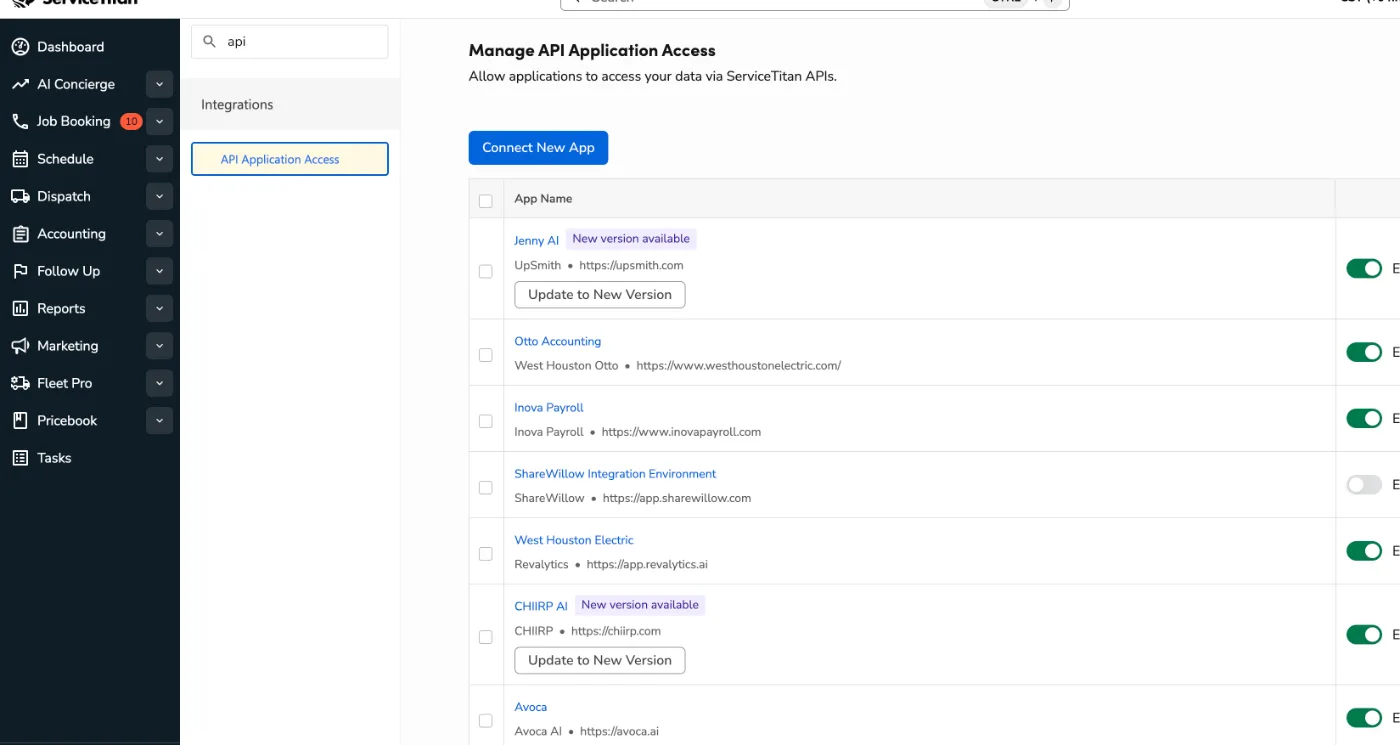
Update to New Version sits on the Jenny AI row itself — not the blue Connect New App button above it.
Go to Settings → Integrations → API Application Access.
Find Jenny AI in the list and click Update to New Version — not Connect New App. Connecting again creates a second entry instead of updating the one you have.
You'll get the same consent popup, headed Upgrade App and reading "Jenny AI wants to change how it accesses your ServiceTitan Account".
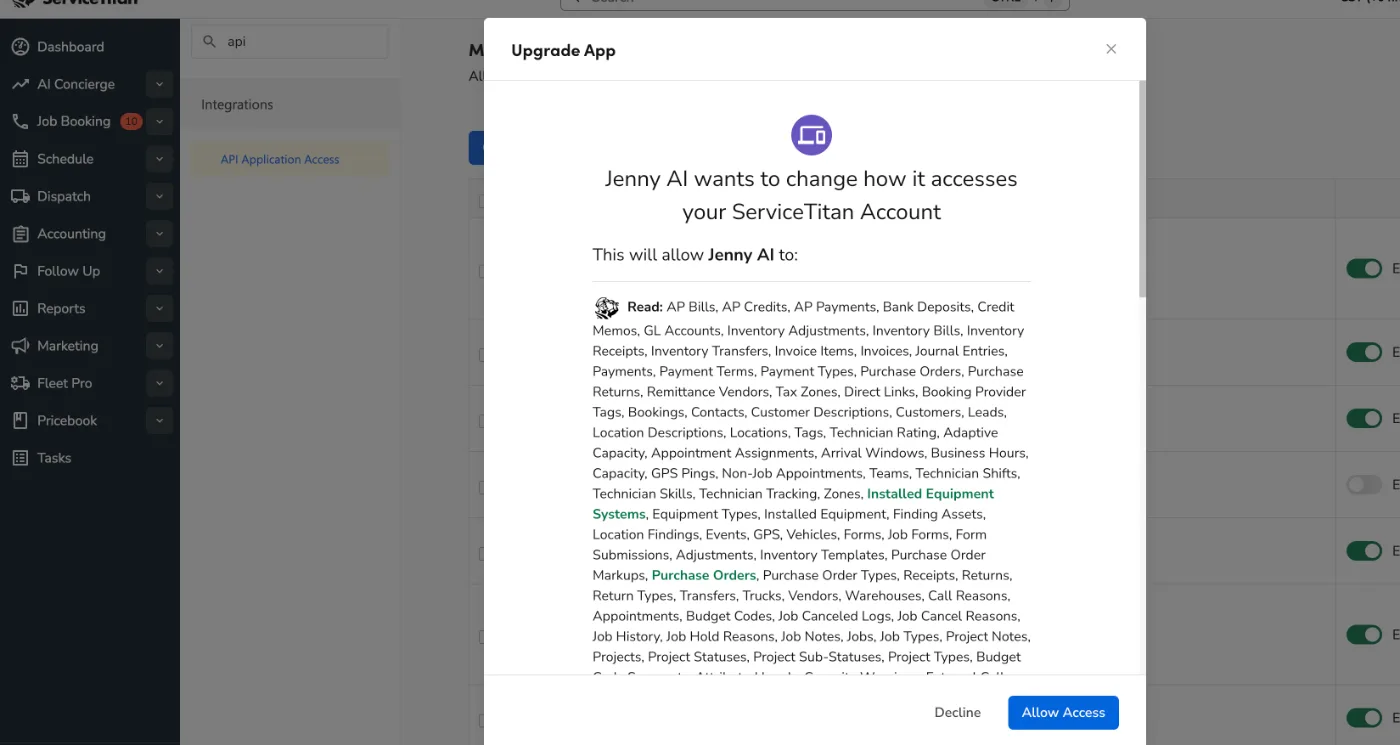
The permission list is long. That is normal — scroll inside the popup to reach the three dropdowns underneath it.
Scroll to the bottom and set the three restrictions again — they don't carry over, and the report category may come back pre-filled with Marketing.
Click Allow Access, then Accept on the Terms and Conditions screen that follows. The update isn't applied until you accept.
Nothing breaks while you wait. Your agents keep running on the version you already approved — they just can't use whatever the new version was for. If UpSmith has asked you to update, it's because something you want is waiting on it.
Finding your tenant ID
UpSmith support will usually ask for your ServiceTitan tenant ID. It's on the same page you just used: Settings → Integrations → API Application Access, in the YOUR TENANT ID card at the top right. It's a long number — copy it exactly.
If your UpSmith account was set up without one, nothing will be connected even after the app is installed. Send the tenant ID to support@upsmith.com and we'll finish wiring it up.
Troubleshooting
The Connect button in the popup is greyed out. You haven't selected the Jenny AI card yet. Click the card itself, then Connect.
The popup says 0 apps available. ServiceTitan hasn't been granted the Jenny AI app for your tenant yet. Email support@upsmith.com — that's on our side, not yours.
You can't find API Application Access in settings. Your ServiceTitan role doesn't have access to it. Ask whoever administers your ServiceTitan to either do the install or give you the permission.
Clicking Install UpSmith's Jenny AI App does nothing. Your browser blocked the new tab. Allow popups for UpSmith, or go to ServiceTitan yourself and start at step 2.
You clicked Allow Access and the popup was still there, so you closed it. That screen was the Terms and Conditions step, and closing it cancels the whole thing. Start again from Connect New App (or Update to New Version) and click Accept at the end.
UpSmith still says the app isn't installed. Give it five minutes and click I've installed the app — check now again. If it's been longer than that, check that Enable Access is switched on for the Jenny AI row — an app can be connected but disabled, which looks installed and isn't.
Your agents can't see some bookings, or reporting looks incomplete. One of the three restrictions is set to something other than the values above — most often the Bookings dropdown was set to Jenny AI, or the report category was left on Marketing. Run Update to New Version and reset them, or email support and we'll check what came through.
Ask Jenny is warning that your data is stale or incomplete. Updating the ServiceTitan app will not clear that. The app version controls what UpSmith is allowed to read, not whether the most recent read succeeded — a freshness warning is about the sync, not the permissions. Email support@upsmith.com with a screenshot of the warning and roughly when it started.
There are two Jenny AI rows, or an older UpSmith app in the list. Harmless, but tell support@upsmith.com before you disable or delete anything — we'll confirm which one your account is actually using first.
Common questions
Why does the permission list ask for so much? Your agents book jobs, confirm and reschedule appointments, read your pricebook and memberships, write notes back, and report on what they did — each of those needs its own ServiceTitan permission. Read access is much broader than write access: UpSmith reads a lot to answer questions accurately, and writes only where an agent has to change something.
Can UpSmith install this for us? No. ServiceTitan requires someone inside your tenant to grant it. We'll walk through it on a call if that's easier.
Do I have to redo this when you release new agents? Only when the app needs a permission it doesn't already have. You'll see a New version available pill when that happens, and we'll usually tell you it's coming.
What happens if I decline? Nothing is granted and your UpSmith account stays unconnected. You can start again from Connect New App whenever you're ready.
Does this give UpSmith access to our banking or payroll? The app requests read access across most of your ServiceTitan, payroll and accounting records included, because reporting draws on them. It cannot move money — there's no write access to payroll, purchase orders, or bank deposits. If you want the specifics for a security review, email support and we'll send the full permission list.
We're a group with several tenants. Do we do this once? Once per ServiceTitan tenant. Each tenant grants access to its own data, so a parent company installing it doesn't cover its brands.
Where to go next
Logging In and Getting Started — what the rest of your first 30 days looks like
Who Can See What — adding your team to UpSmith
Scheduling and Bookings — how your agents use the ServiceTitan access once it's connected
Lead Source Integrations — connecting the places your leads come from